
Narayan Prasath · 2026-01-11
How to Add Users to LinkedIn Campaign Manager
Step-by-step guide to adding users to LinkedIn Campaign Manager. Set permissions, assign roles, and manage team access to ad accounts.
How to Add Users to LinkedIn Campaign Manager
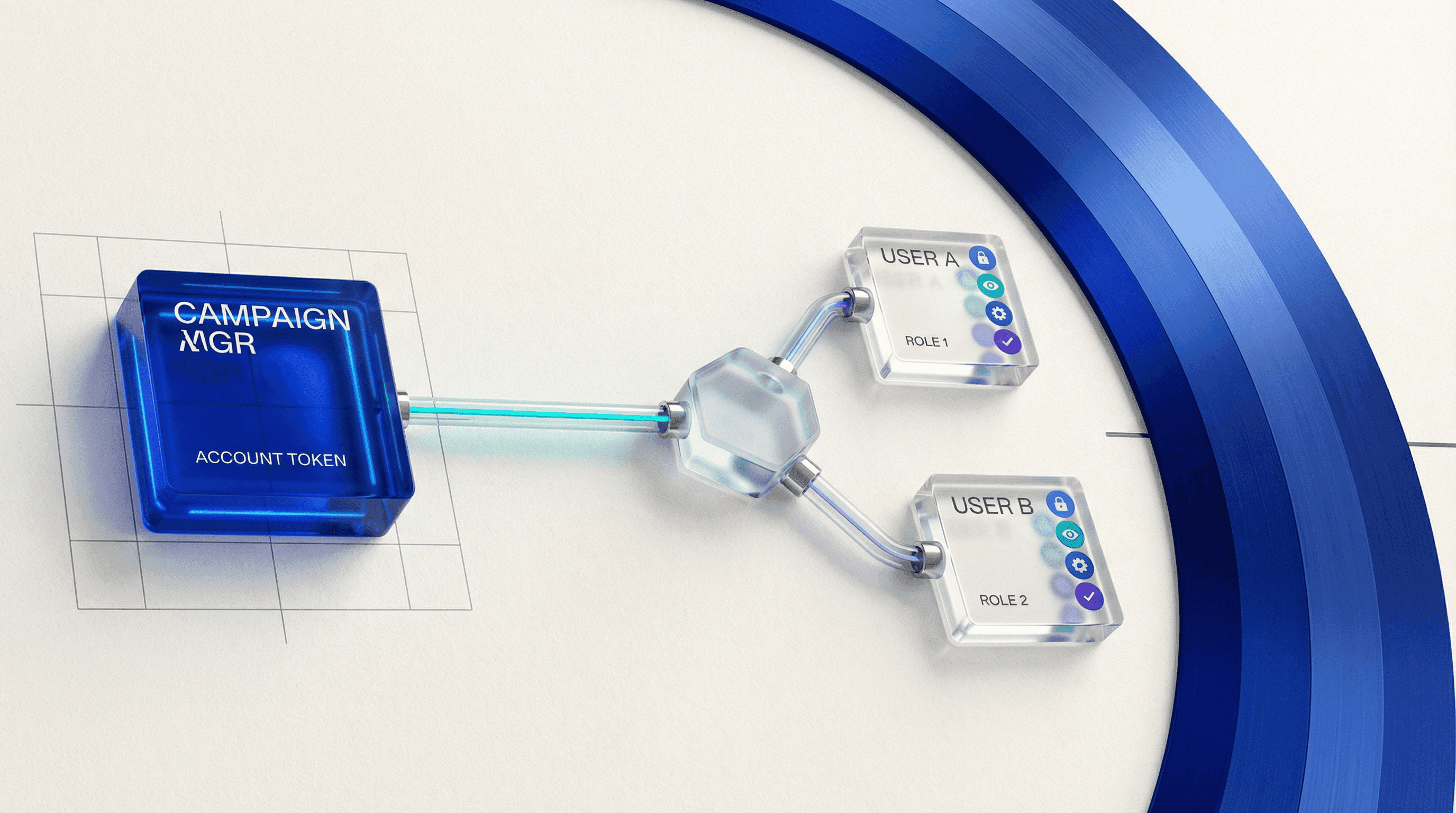
TL;DR: Add users to Campaign Manager via Settings > Account Users > Add user. Enter their LinkedIn profile URL or email, select role (Account Manager, Campaign Manager, Creative Manager, etc.), and send invitation. They receive email notification and must accept to gain access. Requires Account Manager or Account Owner permissions to add users.
Prerequisites
To add users to Campaign Manager, you need:
- Existing LinkedIn Campaign Manager account
- Account Manager or Account Owner role
- LinkedIn profile URL or work email of person to add
- Clear understanding of roles and permissions needed
- Person being added must have LinkedIn profile
If you don't have permission: Ask your Account Owner or Account Manager to add you as Account Manager first, then you can add others.
What Are Campaign Manager User Roles?
LinkedIn Campaign Manager has 5 permission levels:
| Role | Create Campaigns | Edit Campaigns | View Reports | Manage Billing | Add/Remove Users |
|---|---|---|---|---|---|
| Account Owner | ✓ | ✓ | ✓ | ✓ | ✓ |
| Account Manager | ✓ | ✓ | ✓ | ✓ | ✓ |
| Campaign Manager | ✓ | ✓ | ✓ | ✗ | ✗ |
| Creative Manager | ✗ | ✓ ads only | ✓ | ✗ | ✗ |
| Reporting Manager | ✗ | ✗ | ✓ | ✗ | ✗ |
| Campaign Viewer | ✗ | ✗ | ✓ limited | ✗ | ✗ |
Role Definitions
Account Owner
- First person who created the account
- Cannot be changed or transferred
- Full control over everything
- Only one Account Owner per account
Account Manager
- Full access except can't delete account
- Can add/remove users
- Access to Billing Center
- Best for: Marketing directors, agency account leads
Campaign Manager
- Create and edit campaigns and ads
- View all reporting
- Cannot manage billing or add users
- Best for: Day-to-day campaign managers, paid media specialists
Creative Manager
- Edit ad creatives only (images, copy, CTAs)
- Cannot change targeting, budgets, bids
- View reports for their ads
- Best for: Designers, copywriters
Reporting Manager
- View-only access to all campaigns and reports
- Export data
- Cannot create or edit campaigns
- Best for: Analysts, finance team, leadership
Campaign Viewer
- Most limited access
- View specific campaigns only (not all campaigns)
- Basic metrics only
- Best for: External stakeholders, consultants with limited scope
Step 1: Access User Management Settings
Navigate to user management:
- Log into Campaign Manager
- Select your ad account (top-left dropdown if managing multiple accounts)
- Click Settings (gear icon, top-right)
- Select Account Users from left sidebar
- You'll see list of current users with their roles
If "Account Users" doesn't appear: You don't have permission to manage users. Only Account Owner and Account Manager roles can add users.
Step 2: Click Add User
On the Account Users page:
- Click Add user button (top-right)
- Add user dialog appears
You'll see two options for adding users:
- LinkedIn profile URL (recommended)
- Email address
Step 3: Enter User Information
Option 1: Add by LinkedIn Profile URL (Recommended)
How to get someone's LinkedIn profile URL:
- Search for person on LinkedIn
- Visit their profile
- Copy URL from browser address bar
- Format:
linkedin.com/in/firstname-lastname
In Campaign Manager:
- Paste full LinkedIn URL into field
- LinkedIn automatically populates their name and headline
- Verify correct person (check photo, company)
Advantage: No chance of typo, LinkedIn verifies identity
Option 2: Add by Email Address
Enter their work email:
john.smith@company.com
Requirements:
- Must be email associated with their LinkedIn account
- Person must have LinkedIn profile with that email
- If email not on LinkedIn, invitation fails
Disadvantage: Person might use personal email for LinkedIn, so work email won't match.
Step 4: Assign User Role
Select appropriate permission level:
Choosing the Right Role
For agency teams managing client accounts:
- Agency lead → Account Manager
- Account strategists → Campaign Manager
- Creative team → Creative Manager
- Client stakeholder → Reporting Manager
For in-house marketing teams:
- Marketing Director/CMO → Account Manager
- Paid media manager → Campaign Manager
- Designer → Creative Manager
- Analyst → Reporting Manager
- Executive/leadership → Reporting Manager or Campaign Viewer
For contractors/freelancers:
- Full-service contractor → Campaign Manager
- Creative freelancer → Creative Manager
- Audit/consultant → Reporting Manager
Security Best Practices
Principle of least privilege:
- Give minimum access needed for role
- Don't default everyone to Account Manager
- Review permissions quarterly
Campaign Viewer for external parties:
- Clients (if you're agency)
- Board members
- Investors
- Partners who need limited visibility
Step 5: Send Invitation
After entering email/URL and selecting role:
- Review details in preview
- Add optional note: "Hi John, adding you to our LinkedIn ads account. Let me know if you have any questions."
- Click Send invitation
What happens next:
- User receives email from LinkedIn: "You've been invited to manage [Company Name]'s LinkedIn ad account"
- Email contains Accept invitation button
- User clicks button and logs into LinkedIn
- Access granted immediately upon acceptance
Invitation expiration: Invitations expire after 90 days. If user doesn't accept, resend invitation.
Step 6: User Accepts Invitation
From the invitee's perspective:
- Email received: "You've been invited to manage [Company] LinkedIn ad account"
- Email content shows:
- Who invited them
- What role they're assigned
- Which ad account
- Click "Accept invitation"
- Redirected to LinkedIn (must be logged in)
- Confirm acceptance
- Access granted: Can now access Campaign Manager for that account
If user doesn't see email:
- Check spam/junk folder
- Verify email is associated with LinkedIn account
- Re-send invitation from Campaign Manager
Step 7: Verify Access
After user accepts:
Verify as Admin
- Campaign Manager > Settings > Account Users
- Look for user in list
- Status should show Active (not "Invited")
- Role should match what you assigned
Verify as New User
New user should:
- Log into Campaign Manager at
business.linkedin.com/campaign-manager - See ad account in account selector (top-left)
- Confirm they can see campaigns/reports based on role
- Test creating/editing based on permissions
If user can't access:
- Verify they accepted invitation (check status in Account Users)
- Confirm correct LinkedIn profile (not personal profile if they have multiple)
- Wait 5 minutes for sync (sometimes delayed)
- Have them log out and log back in
Managing Existing Users
Change User Role
To promote or demote user:
- Account Users page
- Find user in list
- Click ••• (three dots) next to their name
- Select Change role
- Choose new role
- Click Save
Effect: Immediate (no re-invitation needed)
Common scenarios:
- Promote Campaign Manager → Account Manager (when team member takes on leadership role)
- Demote Account Manager → Campaign Manager (remove billing access)
- Change Campaign Manager → Creative Manager (narrow scope)
Remove User Access
To revoke someone's access:
- Account Users page
- Find user in list
- Click ••• (three dots)
- Select Remove access
- Confirm removal
Effect:
- Immediate loss of access
- User cannot view campaigns or reports
- User receives no notification (silent removal)
When to remove:
- Employee leaves company
- Contractor project ends
- Agency contract terminates
- Team member switches roles
Resend Invitation
If someone didn't receive or accept invitation:
- Account Users page
- Find user with Invited status
- Click Resend invitation
- User receives fresh email
Use when:
- Original email expired (90 days)
- User accidentally deleted email
- Email went to spam and was deleted
Adding Multiple Users at Once
LinkedIn doesn't support bulk user import via CSV. To add multiple users:
Manual process:
- Create spreadsheet with:
- Name
- LinkedIn URL or email
- Desired role
- Notes
- Add users one by one
- Check off each as completed
Time estimate: 2-3 minutes per user
For 10+ users: Consider using LinkedIn Business Manager (enterprise feature) which has additional user management capabilities.
Common User Management Scenarios
Scenario 1: Agency Managing Client Accounts
Setup:
- Agency Account Manager (full access)
- Client Reporting Manager (view-only access to see campaign performance)
- Agency team members as Campaign Managers
Workflow:
- Client creates Campaign Manager account
- Client adds agency lead as Account Manager
- Agency lead adds own team members
- Agency lead adds client stakeholder as Reporting Manager
Scenario 2: In-House Team with External Creative
Setup:
- Marketing Director as Account Manager
- Paid media specialist as Campaign Manager
- Freelance designer as Creative Manager
Workflow:
- Marketing Director is Account Owner
- Adds paid media specialist as Campaign Manager (launches campaigns)
- Adds designer as Creative Manager (edits ad creative only, can't change budgets)
- Designer loses access when project ends (Director removes)
Scenario 3: Multiple Regional Managers
Setup:
- HQ marketing as Account Manager
- US regional manager as Campaign Manager
- EU regional manager as Campaign Manager
- APAC regional manager as Campaign Manager
Limitation: LinkedIn doesn't allow filtering campaigns by user. All Campaign Managers see all campaigns.
Solution: Use naming conventions:
US_Q1_Product_LaunchEU_Q1_Product_LaunchAPAC_Q1_Product_Launch
Scenario 4: Executive Dashboard Access
Setup:
- CMO needs high-level visibility but doesn't manage campaigns
Solution: Add CMO as Reporting Manager
- Can view all campaign performance
- Export reports for board meetings
- Cannot accidentally edit or pause campaigns
- No access to Billing Center
Troubleshooting User Access
Issue 1: "Cannot Add User" Error
Causes:
- You don't have Account Manager or Account Owner role
- User already has access to account
- User's LinkedIn profile doesn't exist or is private
- Email not associated with any LinkedIn account
Fixes:
- Verify your role in Account Users (must be Account Manager or Owner)
- Check if user already in list (search by name)
- Get correct LinkedIn URL from person directly
- Ask person to add work email to LinkedIn account, then retry
Issue 2: User Accepted But Can't Access Campaign Manager
Causes:
- User logging into wrong LinkedIn account (personal vs work profile)
- Account switcher not showing new account
- Browser cache issue
- 5-minute sync delay
Fixes:
- Verify user accepted invitation (check Account Users status)
- Have user check account selector (top-left) for your account name
- Have user log out and log back in
- Clear browser cache and cookies
- Try incognito/private browsing mode
- Wait 10 minutes and try again
Issue 3: User Can't See All Campaigns
Causes:
- Assigned Campaign Viewer role (limited access)
- Campaign access restrictions (advanced feature in Business Manager)
- User looking at wrong ad account (multiple accounts in dropdown)
Fixes:
- Verify role is Campaign Manager or higher (not Campaign Viewer)
- Check account selector—switch to correct account
- Review permissions in Account Users settings
Issue 4: User Can't Access Billing Center
Cause: Role is Campaign Manager, Creative Manager, or Reporting Manager
Fix: Only Account Manager and Account Owner roles have Billing Center access.
Solution:
- Upgrade role to Account Manager if appropriate
- Or Account Manager handles billing separately
Issue 5: Can't Remove Account Owner
Cause: LinkedIn doesn't allow removing or changing Account Owner
Workaround:
- Account Owner adds new person as Account Manager (full access)
- Account Owner stops using account (doesn't remove themselves)
- New Account Manager handles all tasks
Note: If Account Owner leaves company, contact LinkedIn Support to transfer ownership (requires verification).
Best Practices for User Management
- Document access: Maintain spreadsheet of who has access and why
- Quarterly audits: Review Account Users list every 3 months, remove inactive users
- Use descriptive roles: Choose role based on actual responsibilities, not seniority
- Start restrictive: Easier to promote than demote; start with Campaign Manager
- Agency transitions: When changing agencies, remove old agency access immediately
- Offboarding checklist: Remove Campaign Manager access when employees leave
- Test new users: Have new user confirm they can access immediately after accepting
- Separate financial access: Only give Account Manager to people who need billing visibility
- Client access: Always give clients Reporting Manager (not Campaign Manager) for transparency without risk
- Email trail: Save acceptance emails for audit purposes
Account Users vs Business Manager
| Feature | Campaign Manager Account Users | Business Manager |
|---|---|---|
| User management | Basic (5 roles) | Advanced (custom permissions) |
| Multiple accounts | Switch between accounts | Centralized view |
| Campaign filtering | No (all users see all campaigns) | Yes (assign users to specific campaigns) |
| Reporting | Same reports for all users | Custom report access |
| Best for | Small teams, single accounts | Enterprise, agencies with 10+ accounts |
| Cost | Free | Enterprise feature |
Upgrade to Business Manager when:
- Managing 5+ ad accounts
- Need granular campaign-level permissions
- Team of 10+ users
- Want centralized billing across accounts
Glossary
| Term | Definition |
|---|---|
| Account Owner | First person who created Campaign Manager account; has ultimate control |
| Account Manager | User role with full access including billing and user management |
| Campaign Manager | User role that can create/edit campaigns but not manage billing or users |
| Creative Manager | User role limited to editing ad creatives only |
| Reporting Manager | View-only access to campaigns and reports |
| Account Users | Settings page where you manage team access to Campaign Manager |
| Invited status | User has been invited but hasn't accepted yet |
| Active status | User has accepted and can access Campaign Manager |
| Business Manager | LinkedIn's enterprise-level account management platform |
Verification Checklist
After adding user:
- User received invitation email from LinkedIn
- User accepted invitation
- User status shows "Active" in Account Users list
- User's role is correctly assigned
- User can log into Campaign Manager and see ad account
- User can perform expected tasks based on role
- User cannot perform tasks beyond their role
- Billing Center access matches expectations (only Account Manager/Owner)
- User documented in internal access tracking spreadsheet
- User understands their responsibilities and limitations
Related Tasks
After adding users:
- Share documentation: Send new users internal campaign naming conventions, brand guidelines
- Set up notifications: Configure campaign alerts so team gets notified of issues
- Establish workflow: Define who creates campaigns, who reviews, who approves
- Schedule training: Walk through Campaign Manager interface if user is new to LinkedIn ads
- Set expectations: Clarify who handles what (creative, targeting, budgets, reporting)
Screenshot List:
- Campaign Manager Settings menu with Account Users option (Settings gear icon > Left sidebar > Account Users)
- Account Users landing page with user list (Account Users > Table showing users, roles, status)
- "Add user" button highlighted (Account Users page > Top-right "Add user" button)
- Add user dialog with LinkedIn URL field (Add user modal > Profile URL or email input)
- Role selector dropdown showing 5 roles (Add user modal > Role dropdown expanded)
- User invitation confirmation (After clicking Send > "Invitation sent" success message)
- Invitation email user receives (Email inbox > LinkedIn invitation email)
- Accept invitation button in email (Email content > "Accept invitation" CTA button)
- LinkedIn confirmation page after accepting (After clicking Accept > Confirmation screen)
- Account Users list showing new user as Active (Account Users > New user row with "Active" status)
- User role change dropdown (User row > Three dots menu > Change role option)
- Remove user confirmation dialog (Three dots menu > Remove access > Confirmation modal)